
How to Connect Email to Your Domain: Step-by-Step
After choosing a provider, prepare the domain, obtain MX, SPF, DKIM, and DMARC records, switch the route, and put the service into operation.
Contents
- Separate the domain, DNS, and email service
- List every address before configuration
- Prepare mailboxes and user access
- Obtain the exact DNS records from the provider
- Choose a safe time to switch MX
- Test from external addresses
- Keep the old environment until acceptance
- How Mailcore handles the process
- Sources
Email on your own domain begins not with a Create mailbox button, but with a route: senders need to know which server receives messages for company.uz, while recipients need working sign-in and sending methods. DNS defines the route, the email service stores messages, and webmail or an IMAP/SMTP application provides daily access.
The sequence below works for both a new domain and a replacement provider. Always obtain actual record values from the chosen service. Never copy example addresses from the internet into production DNS by guesswork.
This guide is for a developer, system administrator, or contractor who has selected a provider and is responsible for implementation. You do not need to build a mail server yourself; the job is to map dependencies, obtain exact records, and perform repeatable acceptance tests. If the provider is still being selected, begin with our technical checklist for email solutions in Uzbekistan.
Separate the domain, DNS, and email service
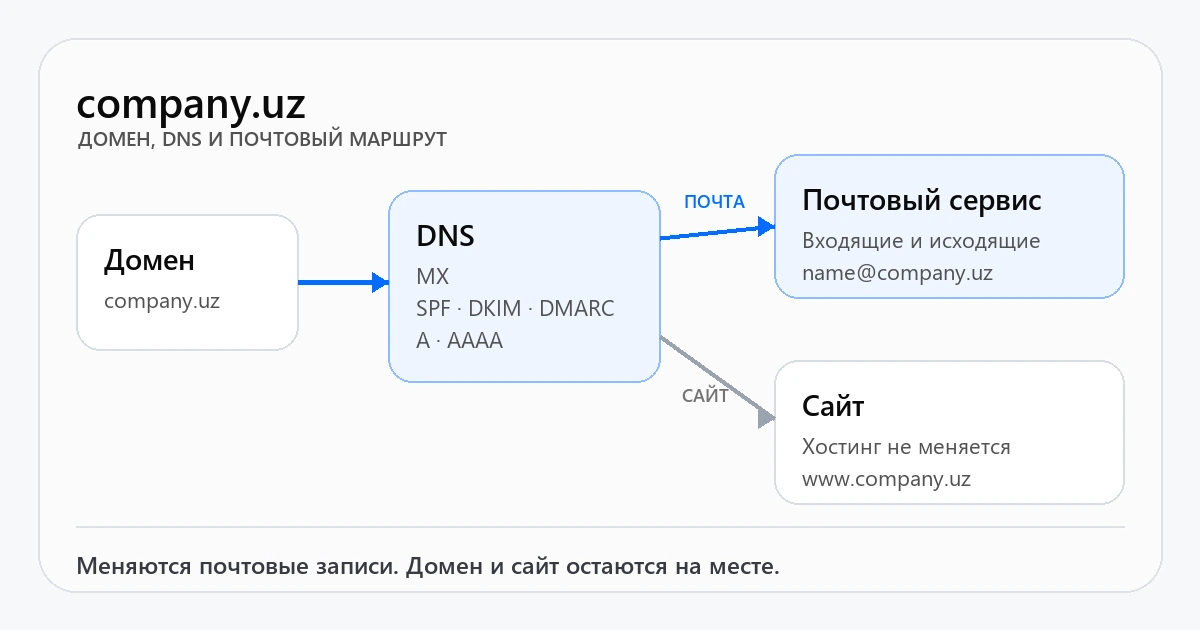
These three services often belong to different companies. A registrar holds the domain, another platform may host its DNS zone, and a third provider may run the mailboxes. Moving email usually does not require moving the domain or website.
First identify the domain's authoritative name servers. MX and authentication records must be changed there. A registrar panel may display domain settings without controlling the zone when NS records delegate it elsewhere.
Then record everything that already sends on behalf of the domain. Besides employee mailboxes, this can include the CRM, website form, notification system, or newsletter platform. Forgetting one source when changing SPF and DMARC can cause legitimate messages to fail authentication.
For broader context, review what business email is and the guide to the difference between IMAP and SMTP.
List every address before configuration
Create a table of required addresses. Include employees and functional contacts such as info@, sales@, support@, billing, notifications, and recovery addresses for critical services.
Classify each address as:
- an independent mailbox with its own password;
- an alias that delivers to another mailbox;
- a group address for several recipients;
- an address used by an application only for sending;
- a retired address retained temporarily for incoming mail.
Providers use these terms differently, and “user,” “mailbox,” “alias,” and “group” may be billed differently. Confirm that the selected model supports the actual scenario before payment.
For an active domain, reconcile the list against at least three sources: the old provider's panel, the administrator's address book, and contacts shown on the public website. This simple check often reveals forgotten service addresses.
Prepare mailboxes and user access
Create mailboxes before switching MX. Every user needs a unique password and clear sign-in instructions. Test webmail in the browser. If the team uses Outlook, Thunderbird, Apple Mail, or mobile apps, obtain IMAP and SMTP settings in advance.
A green indicator on the mailbox-creation form is not acceptance. Before the public switch, verify:
- the spelling of every address;
- webmail sign-in;
- receiving and folder synchronization over IMAP;
- encrypted, authenticated SMTP sending;
- replacement of temporary passwords and secure storage in a password manager.
Enable any additional sign-in protections supported by the provider according to its documentation. Do not distribute one company-wide password or keep an access spreadsheet next to the employee list.
Obtain the exact DNS records from the provider
A production domain normally needs a coordinated set of values, not one setting. The exact set depends on the service and sending architecture.
| Record | Purpose | What to verify |
|---|---|---|
| MX | Incoming message route | Priority and exact server name |
| SPF | Permitted sending sources | Every legitimate service in one policy |
| DKIM | Cryptographic message signature | Selector and public key |
| DMARC | Policy for SPF or DKIM failure | Domain alignment and report address |
MX must point to a hostname, not an IP address. If the service provides several MX records, preserve every value and priority. See the MX record guide for details.
A domain must have one resulting SPF policy. Several TXT records beginning with v=spf1 cause an evaluation error. Combine sources into one policy while observing SPF limits, ideally with administrator review or each sender's documentation.
DKIM is normally a TXT record under a name containing a selector. The private key remains with the sending service; DNS contains only the public part. DMARC is published separately at _dmarc. Move to strict rejection only after every legitimate source authenticates with the required alignment. The relationship among the mechanisms is explained in SPF, DKIM, and DMARC.
Choose a safe time to switch MX
For a new domain, publish MX once mailboxes are ready. Active email needs a transition plan. DNS answers remain cached for their TTL, so senders do not all see the change simultaneously. Some servers may continue using the previous route after the panel displays the new record.
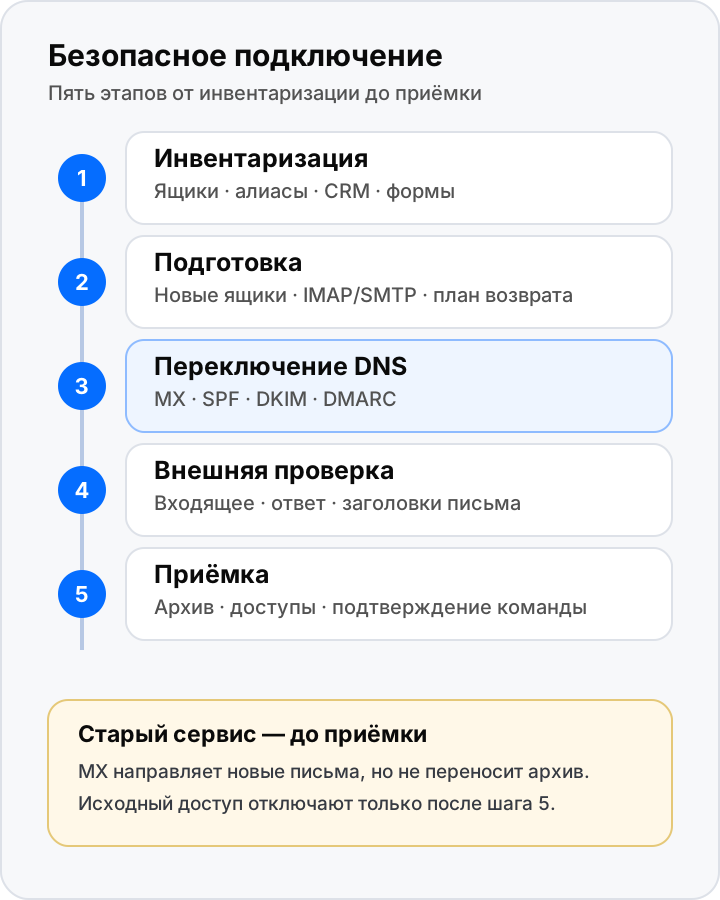
Before changing MX, confirm that:
- every new mailbox is ready;
- the old service will remain available;
- the team knows the maintenance window;
- previous DNS values have been saved;
- a responsible person is ready to run external tests;
- archive migration has a separate plan if required.
Do not remove the old MX until the new set is approved. Do not leave an arbitrary mixture of two providers' MX records in production: senders choose by priority and availability, making the result unpredictable.
TTL is sometimes lowered ahead of a planned migration. This helps future queries but does not clear existing caches. Restore a normal value after stabilization under the DNS provider's policy.
Test from external addresses
After the change, inspect public DNS answers rather than only the panel. Send from several independent external addresses to the new mailboxes and reply. Confirm the sender, timing, destination folder, and authentication headers—not merely that a message appeared.
The minimum test is:
- an external address sends to the domain;
- the user receives it in webmail;
- the user replies over SMTP;
- the external recipient receives the reply;
- technical headers contain the expected SPF, DKIM, and DMARC results;
- one address repeats the test in an email application over IMAP.
SPF, DKIM, and DMARC create the technical foundation for deliverability. The recipient still filters on reputation, complaints, content, and sending frequency. If messages repeatedly reach spam, follow the diagnostic checklist instead of weakening DNS policy at random.
Keep the old environment until acceptance
MX routes only new incoming mail. It does not copy old folders, contacts, or local archives. Keep access to the old system and plan an IMAP migration or client export when history matters.
Before retirement, mailbox owners should verify critical folders, search older messages, and inspect mail received during DNS propagation. A large archive benefits from an initial synchronization before the switch and a final pass afterward. See our measured business email migration guide.
Preserve the source data until formal acceptance. Even an error-free copy can omit an unusual folder or local archive noticed later. The old environment is insurance until the new one is confirmed.
How Mailcore handles the process
Mailcore connects domains through a guided pilot. We confirm the address list and external senders, inspect current records, and prepare MX, SPF, DKIM, and DMARC values. Before changing production MX, we confirm mailbox readiness, external outgoing mail, and recovery from backup. Configured addresses include webmail, IMAP, and SMTP.
The client's technical specialist retains DNS control and receives exact values plus a test scenario. Website, CRM, and other external routes are accounted for before tightening SPF and DMARC. Historical migration is assessed separately, and the source server stays available until acceptance. See how Mailcore connects a domain for the provider-side process.
A successful connection ends not with publishing DNS but with verified two-way correspondence, clear user access, and a retained rollback plan. Those are the real readiness criteria.
Sources
Related reading
 Guides
Business Email in Uzbekistan: An IT Checklist
A technical checklist for developers and administrators evaluating an email service in Uzbekistan, preparing DNS, and accepting a migration. Guides
How Mailcore Connects a Domain: From Request to Working Email
Inside Mailcore's guided setup: domain review, mailbox preparation, a safe MX change, and control messages. Guides
How an Office Manager Can Choose Business Email
A step-by-step checklist for office managers: what information to collect, what to ask providers, and how to present the price and launch plan.Get a setup plan and exact estimate
Send us your domain, number of mailboxes and approximate archive size. We will review the current setup and agree on a safe migration before any DNS changes.