
How an Office Manager Can Choose Business Email
A step-by-step checklist for office managers: what information to collect, what to ask providers, and how to present the price and launch plan.

Contents
- The short answer: what you need to learn internally
- Step 1. Count mailboxes, not employees
- Step 2. Gather information about existing email
- Step 3. Ask every provider the same questions
- Step 4. Prepare a management decision
- How Mailcore completes the task
- What happens on connection day
- The next step without a technical specification
- Sources
Management asks you to “find a reliable business email service,” and search results respond with dozens of plans, gigabytes, MX, SPF, and unfamiliar abbreviations. An office manager does not need to become a system administrator. Collect the input, ask every provider for comparable terms, and bring management a short recommendation with price and launch plan.
This guide keeps the process away from accidental DNS changes and endless relays among the director, website developer, and email provider.
The short answer: what you need to learn internally
Five points are enough for an initial quote:
- The company domain, such as
company.uz. - Employee count and service addresses such as
info@,sales@, andbilling@. - Where people read mail: browser, Outlook, Apple Mail, Thunderbird, or phone.
- Whether old messages must move and how much space they use.
- Whether the website, CRM, accounting system, or newsletter service sends mail.
You do not need to find every DNS record or ask the director for the registrar password in advance. A good provider first reviews public configuration, explains which access is needed later, and prepares exact changes.
Step 1. Count mailboxes, not employees
One employee does not always equal one mailbox. The director needs a personal address, while sales@company.uz may be a separate mailbox with its own history or an alias delivering to another user. These options differ in access and price.
Build a simple table:
| Address or role | Separate sign-in | Users | Old archive required |
|---|---|---|---|
director@company.uz | yes | director | yes |
sales@company.uz | confirm | sales team | yes |
info@company.uz | confirm | office manager | no |
Mark upcoming hires and departures too. Access creation and closure can then be agreed before launch rather than redesigning the structure afterward.
Step 2. Gather information about existing email
Changing provider involves two tasks. One routes new messages to a new server; the other moves existing folders and messages. Neither automatically performs the other.
Ask users to check occupied storage. Approximate values are enough initially: five sub-1 GB mailboxes and a multi-year archive of tens of gigabytes are different projects. Do not cancel the old plan or delete accounts before the new system is accepted.
If an external developer or agency controls the domain and website, record the responsible contact. They need not choose the service, but they will confirm the current setup and enter records that have already been agreed.
Step 3. Ask every provider the same questions
Price alone is misleading. Send each candidate one list:
- full mailboxes and storage included;
- webmail, IMAP, and SMTP for familiar devices;
- who prepares and checks MX, SPF, DKIM, and DMARC;
- how historical migration is assessed;
- how backup and recovery are tested;
- who helps during and after the switch;
- how a departing employee's access is closed and mail exported;
- monthly price in Uzbek soum and one-time work.
Add MFA, a contractual SLA, a specific retention period, or data residency if mandatory. The provider should confirm each requirement for your configuration before payment.
Step 4. Prepare a management decision
Management rarely needs a DNS table. It needs the outcome, cost, ownership, and transition risk. Reduce offers to five lines:
| What to show | How to state it |
|---|---|
| Result | Domain and addresses the team receives |
| Recurring price | Monthly amount for the actual mailbox count |
| One-time work | Archive migration, unusual configuration, device support |
| Ownership | Who prepares records, runs tests, and handles requests |
| Launch plan | What is checked before MX changes and how long old email remains available |
A good summary fits in one message: “We need eight domain mailboxes, webmail and Outlook, plus migration of five archives. Subscription is X; migration follows assessment. The provider prepares records, our administrator changes them in an agreed window, and the old system remains until acceptance.”
How Mailcore completes the task
Mailcore is designed for small teams that need email on their own domain. Configured mailboxes include webmail, IMAP, and SMTP. A specialist reviews the current design, helps confirm addresses, prepares MX, SPF, DKIM, and DMARC, and agrees the switch.
The pilot plan costs UZS 59,000 per month for one domain and five 1 GB mailboxes. Each additional 1 GB mailbox costs UZS 8,000 per month; eight mailboxes therefore cost UZS 83,000. Historical migration is quoted by actual volume, before DNS changes.
The owner retains the domain. Production MX changes after mailbox, external-sending, and recovery checks. List additional availability, sign-in, or retention conditions in the request so Mailcore can confirm the configuration before launch.
What happens on connection day
Choose someone who can test several messages. The provider and DNS owner agree the time, save old values, and enter the new MX. The team tests an incoming external message, an outgoing reply, webmail sign-in, and one familiar application.
The old service remains active during transition so the archive and messages delivered through cached DNS can be checked. The full sequence is in our business email migration guide.
The next step without a technical specification
Prepare the domain, mailbox count, and whether old mail must move. That is enough for the first Mailcore conversation. You will receive clarifying questions, a calculation, and a plan ready to send to management.
Submit the details and receive a connection plan
Sources
Related reading
 Guides
How Mailcore Connects a Domain: From Request to Working Email
Inside Mailcore's guided setup: domain review, mailbox preparation, a safe MX change, and control messages. Guides
Business Email in Uzbekistan: An IT Checklist
A technical checklist for developers and administrators evaluating an email service in Uzbekistan, preparing DNS, and accepting a migration.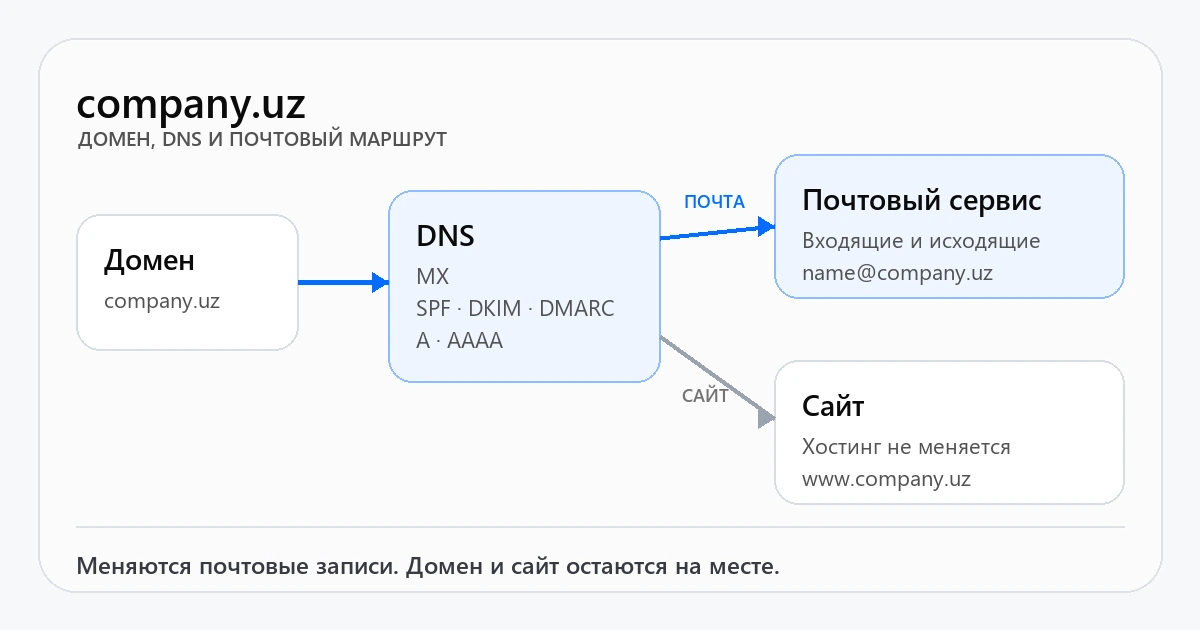 Guides
How to Connect Email to Your Domain: Step-by-Step
After choosing a provider, prepare the domain, obtain MX, SPF, DKIM, and DMARC records, switch the route, and put the service into operation.Get a setup plan and exact estimate
Send us your domain, number of mailboxes and approximate archive size. We will review the current setup and agree on a safe migration before any DNS changes.