
How Mailcore Connects a Domain: From Request to Working Email
Inside Mailcore's guided setup: domain review, mailbox preparation, a safe MX change, and control messages.

Contents
- Who guided setup is for
- What we establish before any changes
- The connection process
- 1. Review current DNS
- 2. Create the agreed mailboxes
- 3. Prepare the DNS set
- 4. Agree the window and change MX
- 5. Run control tests
- What happens to old email
- What the team receives after verification
- Domain owner's acceptance checklist
- Sources
Mailcore accepts requests for guided pilot connections. We first clarify the requirement, inspect the current state, and agree the switchover window. Only then does the domain owner or administrator enter the prepared records. There are no surprise DNS changes and no transfer of the domain to someone else's control.
This protects operational correspondence better than a promise of “email in one minute.” It helps prevent lost incoming messages from a mistaken MX record, omitted addresses, and early loss of archive access. Here is the full path from request to verified two-way correspondence.
Who guided setup is for
The process is designed for a small team that needs addresses on its own domain, such as info@company.uz, sales@company.uz, and named employee mailboxes. Users receive webmail plus IMAP and SMTP settings for configured applications.
Guidance is especially useful when a company has a website and domain but no clear picture of its current email. We review existing records, build an address list, and prepare changes. If another provider already hosts mail, migration is planned separately so archives and transition messages remain available.
The client retains domain control and does not need to share the registrar password. We never change MX outside an agreed window and control checks. Old messages move separately over IMAP when the source supports it. Mandatory SLA, MFA, and retention requirements are captured during configuration.
If you want an overview first, read what business email is, including the difference between a domain, mailbox, webmail, and mail server.
What we establish before any changes
The first stage is a short inventory—even for a new domain. DNS may be hosted somewhere other than the registrar, and existing records may already support a website, CRM, or newsletter service.
We ask the client to confirm:
- the domain and where its DNS is managed;
- required mailboxes and service addresses;
- whether email already exists and the approximate archive size;
- email applications used by the team;
- services that send on behalf of the domain;
- the person who can enter DNS records and run a control test.
We normally do not need a DNS-panel password. We provide exact values and directions, and the owner enters them. If an administrator needs live help, the action remains agreed and is checked immediately after saving.
We record the full address list separately. A common error is moving only named users and forgetting info@, support@, billing, or forwarding from an old name. Before switching, compare the old provider's panel with addresses shown on the website, in contracts, and on business cards.
The connection process
1. Review current DNS
We inspect published MX, SPF, DKIM, and DMARC and look for conflicts. MX tells senders where to deliver incoming mail. SPF, DKIM, and DMARC authenticate sources and domain policy.
One record cannot replace another. A new MX does not authorize outgoing mail, while strict DMARC before all legitimate senders are ready can reject useful messages. See SPF, DKIM, and DMARC without the magic.
2. Create the agreed mailboxes
Mailboxes are ready before the incoming route changes. We verify webmail sign-in and IMAP/SMTP settings for every address. Passwords travel over an agreed secure channel and should be changed or stored in a password manager, never a shared team chat.
While production still follows the old route, the team can test sign-in, addresses, and applications on the new server. Typos, omissions, and client issues are found before primary correspondence moves.
3. Prepare the DNS set
We build MX, SPF, DKIM, and DMARC values for the specific domain. They are not copied blindly: SPF must include other authorized senders, and DMARC policy must reflect actual readiness.
We also inspect TTL, the period a DNS response may remain cached. A lower TTL before switchover can shorten transition for future queries, but cannot instantly remove an already cached value. The old service therefore stays active after MX changes.
4. Agree the window and change MX
The owner or administrator changes MX in the agreed window only after end-to-end external sending and a control restore from backup. Mailboxes, user access, and old DNS values are confirmed beforehand for rollback. A working company selects a time when someone can send and receive control messages.
Different senders may see different DNS answers during propagation, so some messages can reach the old server and others the new one. Both remain accessible temporarily. See how MX works for the mechanics.
5. Run control tests
After publication, we query DNS independently and test with external addresses: at minimum one incoming message, a reply from the new mailbox, and a review of technical headers. Webmail, IMAP, and SMTP are also checked for configured mailboxes.
Correct DNS and control messages form the technical basis for delivery. Gmail, Outlook, and other receivers also assess reputation, content, and recipient behavior. If a message reaches spam, follow the deliverability diagnostic checklist.
What happens to old email
MX affects new incoming mail, not history. The archive stays on the previous server until copied or exported. Check the access period and do not delete source accounts before retiring the old plan.
With stable IMAP access, folders can move separately. We assess volume, folder count, and source limits, run an initial synchronization, then a final pass after switchover for transition-period messages. See how to migrate business email.
Mailcore may use this two-pass design where source IMAP supports it. Duration and suitability depend on the archive and source server. The previous agreement remains active until mailbox owners accept the result.
What the team receives after verification
The company has an agreed address list, webmail access, and IMAP/SMTP settings for created mailboxes. Verified values are published in DNS, and the responsible person understands where they live and why. Incoming messages pass server-side spam checks, and control correspondence proves the real scenario.
We provide a short user checklist: how to sign in, add the account, report a problem, and understand completed tests. If an old server exists, archive status and the date through which access must remain are recorded separately.
Public pricing and mailbox scope are described in how much business email costs. Mailcore confirms price and work before any DNS change.
Domain owner's acceptance checklist
Before closing the setup, verify:
- Every agreed address receives an external test message.
- Every required client type—webmail or application—can send a reply.
- Public MX, SPF, DKIM, and DMARC match the agreed values.
- The old server remains accessible if transition messages are still there.
- The team has an incident contact and no shared password sits in an open document.
The result is a controlled process rather than a blind jump. A new domain with no history is faster; dozens of addresses and several external senders deserve more inventory time than post-change repair.
Submit your domain and receive a connection plan
Sources
Related reading
 Guides
How an Office Manager Can Choose Business Email
A step-by-step checklist for office managers: what information to collect, what to ask providers, and how to present the price and launch plan. Guides
Business Email in Uzbekistan: An IT Checklist
A technical checklist for developers and administrators evaluating an email service in Uzbekistan, preparing DNS, and accepting a migration.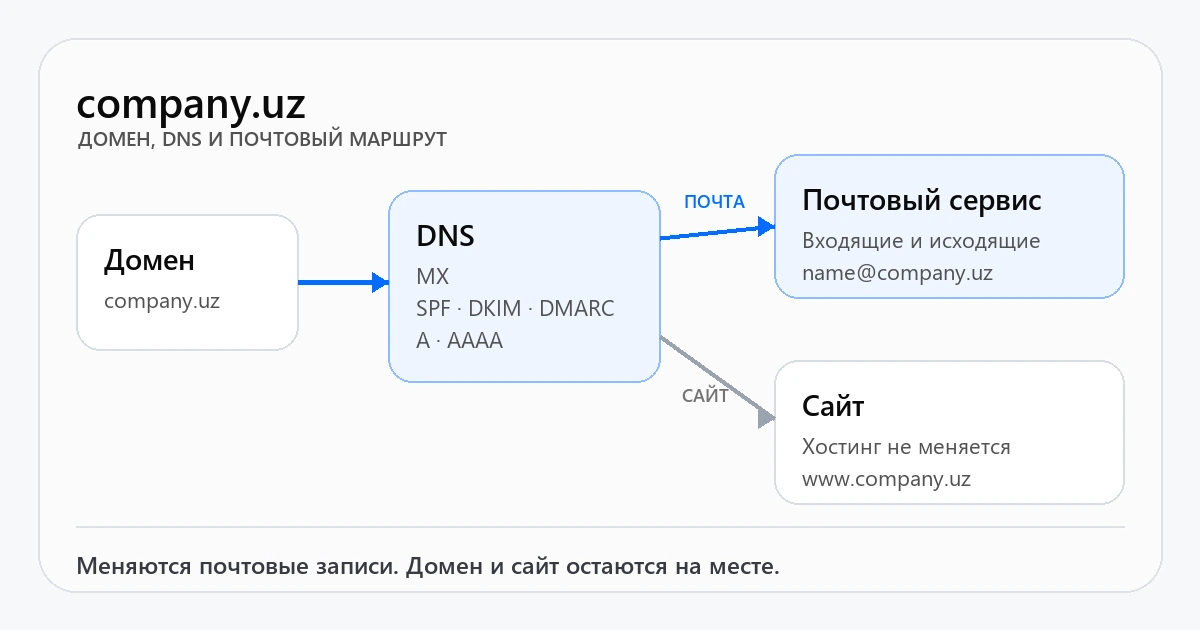 Guides
How to Connect Email to Your Domain: Step-by-Step
After choosing a provider, prepare the domain, obtain MX, SPF, DKIM, and DMARC records, switch the route, and put the service into operation.Get a setup plan and exact estimate
Send us your domain, number of mailboxes and approximate archive size. We will review the current setup and agree on a safe migration before any DNS changes.